What Happens When You Type a URL: DNS, TCP and HTTP
From DNS to TCP, TLS and HTTP to the page on screen: a step-by-step look at what happens when you type an address into the browser, with real examples.
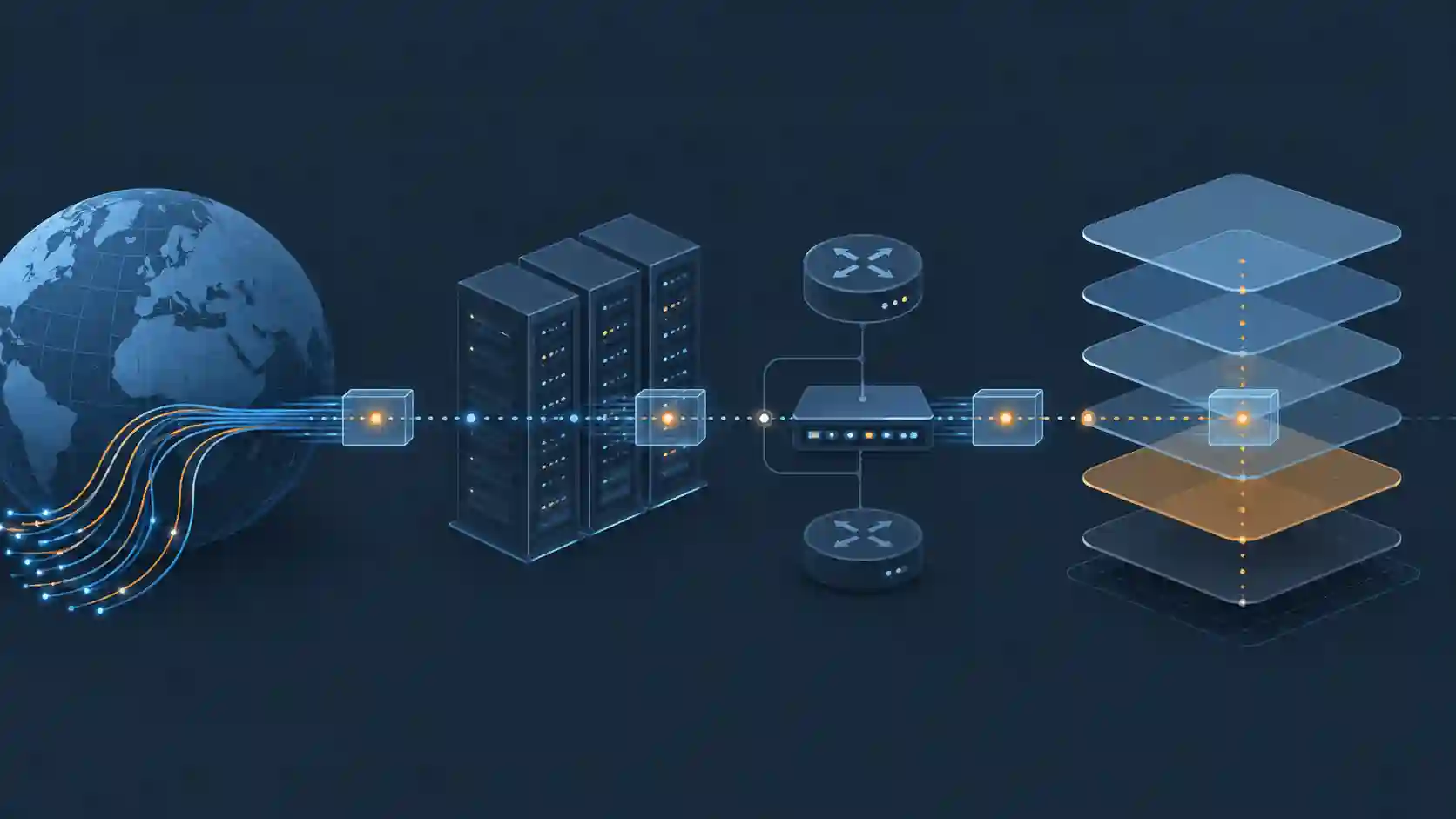
You type github.com into your browser and half a second later the page loads. Looks simple. Under the hood, a chain of operations just ran across at least four protocols, servers in different parts of the planet, and a fair number of things that can go wrong at any step. Knowing what happens in that half second isn't academic: it's what separates debugging a real timeout from spending an hour looking in the wrong place.
This post is the end-to-end view, from the URL to the page painted on screen. Each step has its own post with the details, linked along the way. The commands below ran in an Alpine container on November 9, 2026, from a connection in São Paulo.
What happens when you type a URL: the 7-step summary
- The browser parses the URL. It splits the scheme (
https), the host (github.com) and the path (/). If you typed a single word, it decides whether that's a search or an address. - It resolves the name via DNS. It asks for the IP address of
github.com, first from the local cache, then from a resolver. - It opens a TCP connection to that IP on port 443, with the three-way handshake.
- It runs the TLS handshake. The server proves its identity with a certificate, both sides agree on keys, and from then on everything is encrypted.
- It sends the HTTP request:
GET /with headers likeHostandAccept. - The server responds with a status code (
200,301,404...), headers and the HTML. - The browser renders. It reads the HTML, discovers CSS, JavaScript and images, fetches each one (repeating some of the steps above) and paints the page.
The rest of the post opens up each step.
IP addresses: the problem DNS solves
Every machine on the internet is reached through an IP address. IPv4 looks like 203.0.113.42; IPv6, like 2001:db8::1. The difference between the two is in IPv4 vs IPv6. For two machines to talk, one needs the other's IP, and nobody memorizes 4.228.31.150 to open GitHub. That's what DNS is for.
DNS: from name to IP
DNS (Domain Name System) translates names into addresses. The browser and the operating system check their own caches first. With no cached answer, the question goes to a recursive resolver (your ISP's, or public ones like 1.1.1.1 and 8.8.8.8), which, if it doesn't have the answer cached either, walks down the hierarchy: root → TLD server (.com) → the domain's authoritative server. dig +trace shows every step:
$ dig @1.1.1.1 +trace +nodnssec github.com A
.            512891  IN  NS  a.root-servers.net.
...                                    (13 names, a. through m.)
com.         172800  IN  NS  a.gtld-servers.net.
...
github.com.  172800  IN  NS  ns-520.awsdns-01.net.
github.com.  172800  IN  NS  dns1.p08.nsone.net.
...
github.com.  60      IN  A   4.228.31.150
The "13 root servers" are really 13 identities (A through M) run by 12 organizations; each is announced via anycast from many copies around the world. root-servers.org listed 2,048 operational instances when I checked in November 2026.
In practice the full chain is rarely walked: the resolver already has the root, .com and popular domains cached. From my container, the same query answered from 1.1.1.1's cache took 20 to 24 ms, which is basically the round trip to the resolver. How long each answer stays cached is set by each record's TTL (note the 60 seconds on GitHub's A record above). The resolution step by step, with recursive vs iterative and caching, is in how a DNS lookup works; the record types (A, AAAA, CNAME, MX) are in DNS record types.
TCP/IP: how bytes reach the other side
With the IP in hand, the browser opens a connection. Two protocols at different layers come in here.
IP handles addressing and routing: it stamps source and destination on each packet and hands it to the next router. It's best-effort: it tries to deliver but guarantees neither arrival nor order.
TCP fixes what IP doesn't. It guarantees delivery (retransmitting what was lost), ordering, no duplicates, and flow control. Before any data, it runs the three-way handshake:
Client → SYN      → Server   ("I want to connect")
Client ← SYN-ACK  ← Server   ("ok")
Client → ACK      → Server   ("connection open")
That costs one round trip (RTT) before the first useful byte. On a high-latency link, you feel it. The comparison with UDP, and why HTTP/3 switched sides, is in TCP vs UDP.
TLS: the "S" in HTTPS
Nearly all browsing today is HTTPS, meaning HTTP inside a TLS session. In the TLS handshake the server presents its certificate, issued by a certificate authority the browser trusts, and both sides agree on session keys. curl -v shows the exchange:
* TLSv1.3 (OUT), TLS handshake, Client hello (1):
* TLSv1.3 (IN), TLS handshake, Server hello (2):
* TLSv1.3 (IN), TLS handshake, Certificate (11):
* TLSv1.3 (IN), TLS handshake, Finished (20):
* TLSv1.3 (OUT), TLS handshake, Finished (20):
* SSL connection using TLSv1.3 / TLS_AES_256_GCM_SHA384 / x25519
The round-trip cost depends on the version. TLS 1.2 needs 2 RTTs of handshake before the first HTTP byte. TLS 1.3 (RFC 8446) cut that to 1 RTT on a new connection and allows 0-RTT when resuming a previous session (with the caveat that this early data can be replayed by an attacker, so it's only safe for idempotent requests). Adding TCP + TLS 1.3, a new connection spends 2 RTTs before the HTTP request goes out.
The padlock confirms the connection is encrypted and the certificate is valid for that name. It doesn't say the site is trustworthy. More on that in is a free SSL certificate safe?.
HTTP: the request and the response
With the channel ready, the browser sends the request. In HTTP/1.1 it's plain text; this is the real exchange with example.com, trimmed:
GET / HTTP/1.1
Host: example.com
User-Agent: curl/8.14.1
Accept: */*

HTTP/1.1 200 OK
Content-Type: text/html; charset=utf-8
Server: cloudflare
The first line of the response carries the status code, which decides what the browser does next: 200 is success, 301/302 mean follow the Location header, 404 is a missing resource, 5xx is a server error.
HTTP/1.1 suffers from head-of-line blocking: on one connection, a request waits for the previous one to finish, so browsers open several connections in parallel. HTTP/2 multiplexes many requests over the same TCP connection. HTTP/3 replaces TCP with QUIC, which runs over UDP, embeds TLS 1.3 and removes blocking at the transport level, while also merging the transport and crypto handshakes.
How much is it used? Depends how you measure. In the Cloudflare Radar 2025 Year in Review, 21% of requests to Cloudflare's network used HTTP/3, against 50% HTTP/2 and 29% HTTP/1.x, with little change from 2024. W3Techs counted in November 2026 that 41.1% of websites support HTTP/3, which isn't the same thing as traffic. So: broad support, minority usage, and HTTP/2 still carries most requests. Google and Cloudflare advertise HTTP/3 on their own sites (the alt-svc: h3=":443" header shows up in both responses), but a client only switches after it has seen that advertisement.
The browser gets the HTML and paints the page
The HTML is just the start. The browser reads the document top to bottom, builds the DOM tree and, for every <link rel="stylesheet">, <script> or <img>, fires new requests, often to other domains, each with its own DNS lookup and connection (or reusing an HTTP/2 connection already open). CSS blocks rendering until it arrives; scripts without defer or async block HTML parsing. With DOM and CSS ready, the browser computes layout and paints pixels.
Two things shorten this path on later visits. The browser cache avoids re-downloading what hasn't changed, governed by Cache-Control and ETag (details in browser cache). And a CDN serves files from a server near the user, cutting the round trips that distance costs (see what is a CDN). Rendering, from HTML to pixels, has its own post: how a web page works.
Where your IP fits in
When the server gets the request, it sees your network's outbound IP, not your device's. At home, that's the router's public IP, assigned by the ISP (and sometimes shared with other customers through CGNAT). Behind a corporate proxy, it's the proxy's; on a VPN, the VPN exit server's. Public vs private, static vs dynamic is covered in public, private, static and dynamic IPs.
Frequently asked questions
What's the difference between client and server?
The client starts the request: the browser, an app, curl. The server waits for connections on a port (443 for HTTPS) and responds. The same machine can be both, and a web server becomes a client when it queries a database or another API.
What do DNS, TCP/IP and HTTP each do?
DNS translates the site's name into an IP address. IP carries packets to that address, and TCP makes sure they arrive complete and in order. HTTP defines the content of the conversation: the request (GET /) and the response (status, headers, HTML). TLS sits between TCP and HTTP and encrypts everything.
Why is a site slow even on fast internet?
Bandwidth doesn't fix latency. If the server is far away, each RTT is expensive, and a new connection needs at least two (TCP + TLS 1.3) before the first byte of HTML, plus DNS. That's why CDNs move content closer to users and HTTP/3 tries to save round trips.
Can DNS be hacked?
Yes. In cache poisoning, a resolver accepts forged answers and starts returning the wrong IP for a legitimate domain, sending users to another server without the name changing. DNSSEC signs answers so forgery can be detected, but it only protects zones that are signed and resolvers that validate the signatures.
Each layer fails in its own way
The DNS → TCP → TLS → HTTP → rendering chain was designed as independent layers, which is what lets you swap HTTP/1.1 for HTTP/3 without touching DNS. For debugging, the lesson is knowing which layer the problem lives in: NXDOMAIN is DNS, a connection timeout is network or firewall, a certificate error is TLS, a 503 is the server, a blank page with everything 200 is rendering. curl -v shows the first four stages on one screen. Once you know the problem is in resolution, you won't spend half an hour tuning connection timeouts.
The editorial content ends here. To see the public IP servers see when you browse, with ISP, ASN and approximate location, the Quick Tools What Is My IP tool looks that data up from the ipinfo.io service straight from your browser (which is why it needs a connection), and also checks whether your VPN leaks your real IP through WebRTC. It doesn't run DNS lookups; use dig for that.
- 01 CPU Cores vs. Threads: What Actually Changes in Practice Understand the difference between CPU cores and threads and what actually changes for performance, multitasking, gaming, and development.
- 02 MIT, Apache, and GPL Licenses: Practical Differences for Developers MIT, Apache 2.0, and GPL are not the same thing. Understand permissive vs copyleft, patent protection, and compatibility before shipping code to production.