Linux for beginners: directories, users, groups, and sudo
Understand the Linux directory tree, how to create users, add someone to a group with usermod -aG, and when to use sudo, with the commands for each step.
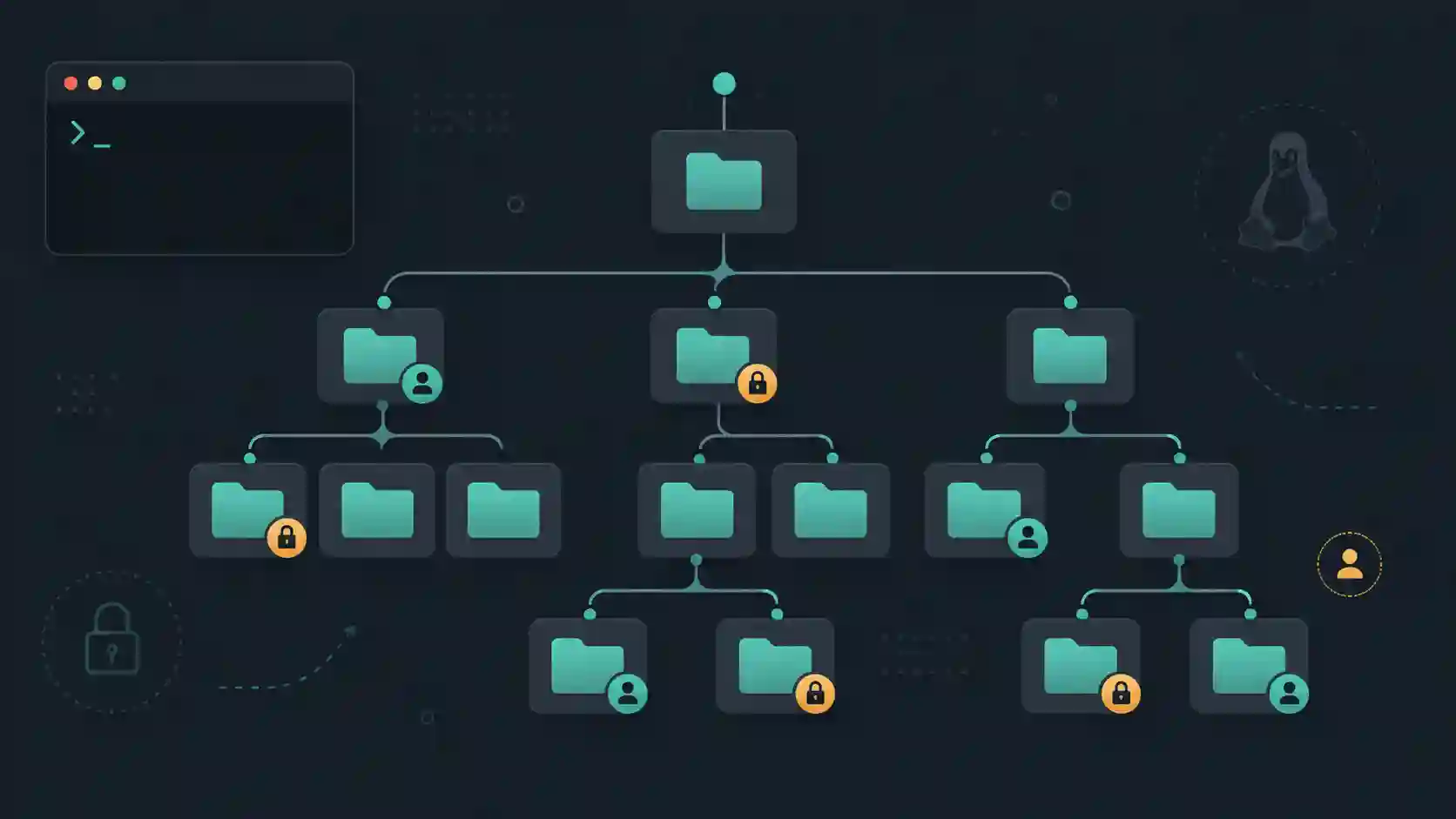
You just got SSH access to a server, run ls /, and get a list of twenty three-letter directories. You ask a colleague to create a user for the intern, they run usermod -G sudo intern without the -a, and the intern loses every other group. Almost every beginner scare in Linux comes from those two things: not knowing where things live and not knowing who can do what.
This post is the starting point of the blog's Linux series: the directory tree, users, groups, and sudo, with the commands for each step. Every command and output below was run in Debian 13 (trixie) and Ubuntu 24.04 containers in November 2026. Permissions (rwx, chmod, umask) show up only as a summary, because they have their own posts, linked at the right moment.
The Linux directory structure
Linux has no C:\ or D:\. There is a single tree with / (the root) at the top, and disks, partitions, and USB drives are mounted as directories inside it. The layout follows the Filesystem Hierarchy Standard (FHS), whose version 3.0 was published by the Linux Foundation in 2015, with some liberties taken by each distro. On a fresh Debian 13, ls / shows:
$ ls /
bin  boot  dev  etc  home  lib  lib64  media  mnt  opt  proc  root  run  sbin  srv  sys  tmp  usr  var
What each one holds, in practice:
| Directory | What it holds |
|---|---|
/etc |
System and service configuration (/etc/nginx/, /etc/ssh/sshd_config, /etc/passwd) |
/home |
Users' personal directories (/home/joao) |
/root |
The root user's home, outside /home |
/usr |
Programs and libraries: /usr/bin, /usr/sbin, /usr/lib, /usr/share |
/var |
Data that changes: logs in /var/log, databases, queues, package cache |
/tmp |
Temporary files from any user |
/opt |
Third-party software installed outside the package manager |
/srv |
Data served by the machine (sites, repositories), when the distro uses it |
/boot |
Kernel and bootloader files |
/mnt, /media |
Mount points: manual (/mnt) and automatic for removable media (/media) |
/dev |
Devices as files (/dev/sda, /dev/null) |
/proc, /sys |
Kernel virtual filesystems: processes (/proc/1234) and hardware (/sys) |
/run |
Runtime state since boot (PIDs, sockets), in memory |
/bin, /sbin, and /lib are now shortcuts into /usr
A lot of older material teaches that /bin holds essential binaries "available before /usr is mounted." That described systems from decades ago. On current distros, /bin, /sbin, and /lib are symbolic links into /usr, known as the usrmerge:
$ ls -ld /bin /sbin /lib
lrwxrwxrwx 1 root root 7 Jul 17 17:05 /bin -> usr/bin
lrwxrwxrwx 1 root root 7 Jul 17 17:05 /lib -> usr/lib
lrwxrwxrwx 1 root root 8 Jul 17 17:05 /sbin -> usr/sbin
Fedora made this change in version 17, and the systemd document on the /usr merge explains why. On Debian, the merged layout became the only supported one starting with Debian 12 (bookworm announcement); Ubuntu 24.04 ships the same way. Practical consequence: /bin/bash and /usr/bin/bash are the same file, and there is no point looking for a difference between them.
You do not need to memorize the table in your first week. But when nginx complains about /etc/nginx/nginx.conf or the disk fills up because of /var/log, you already know where to look. For the full-disk diagnosis, the post on how to find large files in Linux picks up from here.
Users: who is who on the system
Linux is multi-user by design. Every process runs as some user, every file belongs to a user and a group. Root (UID 0) bypasses every permission check, which is why you do not work logged in as root.
Users live in /etc/passwd, readable by everyone. The password is not there: the x in the second field means the hash is in /etc/shadow, which only root (and the shadow group) can read. To look someone up, prefer getent over cat | grep, because it also sees users coming from LDAP or SSSD:
$ getent passwd joao
joao:x:1000:1000::/home/joao:/bin/bash
#    │  │    │       │          └── shell
#    │  │    │       └── home directory
#    │  │    └── primary group GID
#    │  └── UID
#    └── password lives in /etc/shadow
There are two commands to create a user, and the difference catches a lot of people:
useraddis the low-level tool, present on every distro. With no options, on Debian 13, it creates the user without a home directory and with/bin/shas the shell. I tested it:useradd mariaand/home/mariasimply does not exist. Useuseradd -m -s /bin/bash maria.adduseris the friendly Debian and Ubuntu script: it creates the home, copies the files from/etc/skel, sets the shell, and asks for the password. On Debian 13 it also adds the user to theusersgroup and creates the home with mode0700(only the owner gets in), perHOME_MODEin/etc/login.defs. On Fedora and RHEL,adduseris just a link touseradd.
sudo adduser joao                 # Debian/Ubuntu: interactive, asks for a password
sudo useradd -m -s /bin/bash joao # any distro
sudo passwd joao                  # set or change the password
id joao
# uid=1000(joao) gid=1000(joao) groups=1000(joao),100(users)
sudo userdel -r joao              # remove the user and the home
Groups and the danger of usermod without -a
A group is how you give access to several users without opening it to everyone. Each user has a primary group (the GID in /etc/passwd; on Debian, Ubuntu, and Fedora it is a group with the same name as the user) and as many supplementary groups as needed.
sudo groupadd devs
sudo usermod -aG devs joao       # -a = append, -G = supplementary groups
getent group devs
# devs:x:1002:joao
The -a is the part that matters. I ran the sequence on Debian 13: with the user in users and devs, usermod -G sudo joao (no -a) left groups=1000(joao),27(sudo). The users and devs groups were gone. On a server, forgetting the -a is the classic way for someone to lose access to a shared directory or to Docker. To add several at once, usermod -aG devs,sudo joao; to remove someone from a single group, gpasswd -d joao devs.
The second gotcha: a new group does not apply to sessions that are already open. Groups are read at login. I tested it on Ubuntu 24.04 with a session opened before the usermod: it kept showing only joao, while a fresh login already showed joao sudo devs. Either log out and back in (over SSH, reconnect) or open a shell with the group using newgrp devs. That is why, after usermod -aG docker $USER, docker ps keeps failing with permission denied until you log in again.
sudo: root privileges without logging in as root
sudo runs a command as another user (root by default) authenticating with your password, and logs who did what. Who may use it is defined in /etc/sudoers. On Debian 13 the default file has this line:
%sudo ALL=(ALL:ALL) ALL
The % means group: every member of the sudo group can run any command as any user. On Debian and Ubuntu the group is called sudo; on Fedora and RHEL, wheel (Arch also uses wheel, but the line ships commented out in sudoers and you have to enable it). So giving someone sudo means putting them in that group, with -a:
sudo usermod -aG sudo joao       # Debian/Ubuntu
sudo usermod -aG wheel joao      # Fedora/RHEL
sudo -l                          # what can I run with sudo?
# User joao may run the following commands on host:
#     (ALL : ALL) ALL
Never edit /etc/sudoers directly with a regular editor. Use sudo visudo, which validates the syntax before saving: a broken sudoers can leave the system with nobody able to use sudo. For your own rules, create a file in /etc/sudoers.d/ with sudo visudo -f /etc/sudoers.d/deploy, and check everything with visudo -c.
Permissions in two minutes
Every file has permissions for three audiences: owner, group, and others. That is where users and groups turn into access control:
$ ls -ld /srv/projeto /etc/shadow
drwxrwsr-x 2 root devs 4096 Nov  9 16:13 /srv/projeto
-rw-r----- 1 root shadow 527 Nov  9 16:13 /etc/shadow
/etc/shadow is 640: root reads and writes, the shadow group reads, everyone else sees nothing. /srv/projeto is a shared directory for the devs group with the SGID bit (the s): files created there inherit the devs group. I tested it: joao, a member of devs, created a file that came out as joao devs; maria, outside the group, got Permission denied.
The numbers you will see most are 644 (regular file), 755 (directory or executable), 600 (private key), and 2775 (team directory). What each bit means, the difference between chmod, chown, and umask, and why a regular user's umask on Debian and Ubuntu is usually 0002, not 0022, are in chmod, chown, and umask. Reading the numbers (and why 777 is almost always wrong) is in 755, 775, and 644 permissions. To build the number without doing the math, the chmod calculator shows octal and symbolic side by side.
With the tree, users, and sudo in place, the next step is the server diagnostics kit in essential Linux commands and, when you run your application as a service under its own user, how to create systemd services.
Frequently asked questions
What is the difference between su and sudo?
su switches to another user (root by default) and asks for that user's password. sudo runs a command with elevated privileges asking for your own password, with access controlled by /etc/sudoers and logged per user. In practice, use sudo; if you need a root shell, sudo -i does it without anyone knowing the root password.
Should I use adduser or useradd?
On Debian and Ubuntu, adduser to create users interactively, because it already creates the home and asks for the password. In scripts and on other distros, useradd with -m and -s /bin/bash. The common mistake is running bare useradd and finding out later that the user has no home.
I added the user to a group and it did not work. Why?
Because a session's groups are set at login. Log out and back in (over SSH, reconnect) or run newgrp group-name to open a shell that already has the group. Check with id: if the group does not show up there, the session is still the old one.
How do I see a user's groups?
id user shows the UID, primary group, and supplementary groups with their numbers; groups user shows just the names. To see a group's members, getent group group-name.
Know where things live and who can touch them
In Linux, most beginner problems come down to two questions: where does this live in the tree, and who owns it. Configuration in /etc, logs in /var/log, programs in /usr (with /bin pointing there). Create users with a home, grant access through groups instead of opening permissions to everyone, always use usermod -aG with the -a, and remember that a new group only applies at the next login. And treat sudo as the only door to root, edited only through visudo.
- 01 CPU Cores vs. Threads: What Actually Changes in Practice Understand the difference between CPU cores and threads and what actually changes for performance, multitasking, gaming, and development.
- 02 MIT, Apache, and GPL Licenses: Practical Differences for Developers MIT, Apache 2.0, and GPL are not the same thing. Understand permissive vs copyleft, patent protection, and compatibility before shipping code to production.