Git for beginners: basic commands, from commit to GitHub
Learn Git from scratch: the mental model of commits and branches and the basic commands (add, commit, switch, merge, push) you use every day on GitHub.
You made a change that broke everything, you don't remember what you touched, and the only backup is yesterday's version you emailed to yourself. That has a name: no version control. Git exists so this never happens, but the learning curve is steep enough that plenty of people spend their first months on the job memorizing commands without understanding the model behind them.
This guide is the starting point: the mental model of commits and branches, the basic commands in one table, and the path from your first commit to GitHub. Every question that deserves a deeper dive (commit messages, conflicts, undoing things, merge vs rebase) has its own post, linked in the right section. Every command below was run on Git 2.55.
Basic Git commands
The table to come back to later; the rest of the post explains the why behind each one.
| Command | What it does |
|---|---|
git init |
turns the current folder into a repository |
git clone <url> |
downloads a remote repository with its full history |
git status |
shows what changed, what's staged and which branch you're on |
git add <file> |
puts a change in the staging area (the list for the next commit) |
git commit -m "message" |
records a snapshot of what's staged |
git log --oneline |
condensed history, one commit per line |
git diff / git diff --staged |
what changed but isn't staged / what will go into the commit |
git switch -c <branch> |
creates a branch and switches to it |
git switch <branch> |
switches branches |
git merge <branch> |
merges another branch into the current one |
git push -u origin main |
sends commits to the remote (-u links the local branch to the remote one) |
git fetch |
downloads what's new on the remote without touching your files |
git pull |
fetch and then integrates the changes into your branch |
git restore <file> |
discards a file's uncommitted edits |
What Git actually does
Git isn't an automatic backup. It's a system that records the state of the project when you decide to, and lets you move between those states, work on parallel versions, and combine changes from several people without one overwriting the other.
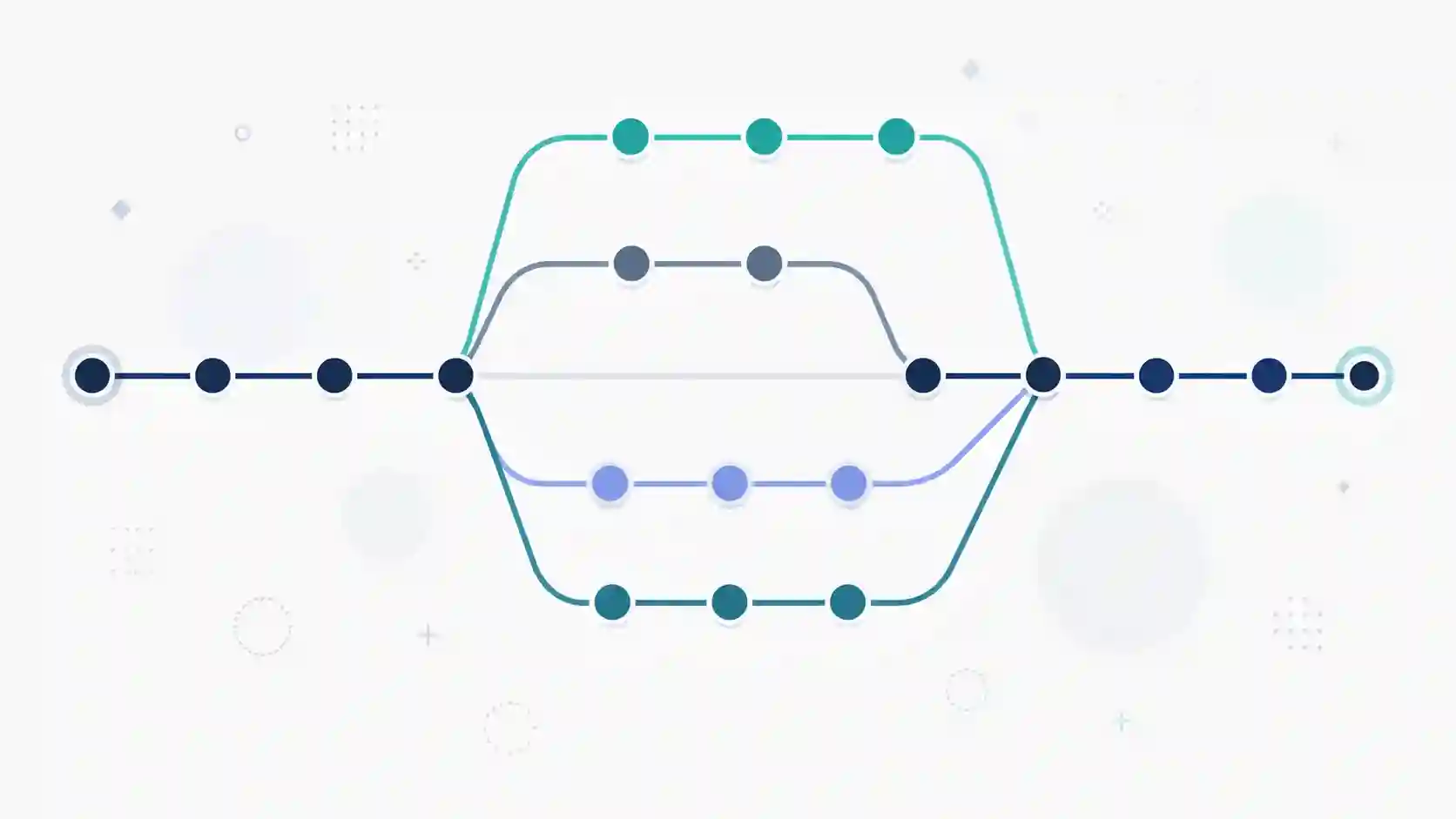
The mental model that makes everything click: each commit is a snapshot of the whole project. You choose when to take it, what goes in, and you write the caption. A branch isn't a copy of the code: it's just a named pointer to a commit that moves forward with each new commit. A merge joins two lines of snapshots. With that in your head, commands that look like magic, such as reset and rebase, become what they are: moving pointers around.
Git and GitHub aren't the same thing
Git is the version control program that runs on your machine, works offline, and keeps the history in the .git folder. GitHub is a service that hosts Git repositories in the cloud and adds collaboration on top: pull requests, code review, issues, Actions. GitLab and Bitbucket play the same role. You can use Git your whole life without GitHub; the reverse doesn't exist.
Install and configure
# macOS (Homebrew)
brew install git

# Ubuntu/Debian
sudo apt install git

# Windows: installer at git-scm.com
Then three settings. Name and email appear on every commit; the third sets the name of the initial branch:
git config --global user.name "Your Name"
git config --global user.email "you@example.com"
git config --global init.defaultBranch main
The third line isn't a detail. Without it, git init still creates a master branch, and Git itself warns you: "Using 'master' as the name for the initial branch. This default branch name will change to "main" in Git 3.0". Since GitHub creates new repositories with main, setting it now avoids a local repository on master trying to talk to a remote on main.
Your first commit: working directory, staging and repository
mkdir project && cd project
git init
This creates the hidden .git folder, where the entire history lives. Never delete that folder by hand. For a project that already exists on GitHub, instead of init you use git clone https://github.com/user/repository.git.
Here's where every beginner gets confused: your files go through three places.
- Working directory: what you've edited but haven't told Git to keep yet.
- Staging area (index): what you've marked to go into the next commit.
- Repository: what's been committed and is part of the history.
git status            # shows new (??) and modified files
git add app.js        # stages one file
git add .             # stages everything that changed in the folder
git commit -m "feat: add tax ID validation"
git log --oneline     # <short hash> feat: add tax ID validation
The staging area exists because a commit should be one cohesive change with a single reason. Edited three files and only two relate to what you were fixing? Stage those two, commit, and the third goes in the next commit.
Before your first git add ., create a .gitignore at the root listing what should never be versioned: node_modules/, .env, dist/, *.log. The old gitignore.io now redirects to Toptal's generator, which builds the file per stack; GitHub's official template collection, github/gitignore, is the alternative I prefer.
How to write a good commit message
"tweaks", "fix" and "wip" tell nothing to whoever reads the history six months from now. "fix: correct discount calculation when quantity is zero" does. The rule that covers 90% of cases: the message explains what and why; the how is in the diff. The most widely adopted standard is Conventional Commits (type: description), with feat, fix, docs, refactor and friends. Format, types, and how to enforce the standard with commitlint are in Git commit messages: format and examples.
Branches: working in parallel
Want to add a feature without messing up the code that works? Create a branch:
git switch -c feature/login     # creates and switches to the branch
git branch                      # lists branches; * marks the current one
git switch main                 # goes back to main
git switch has existed since Git 2.23; older tutorials use git checkout -b, which still works but crams too many jobs into one command. While you work on the branch, main stays untouched. Common naming conventions: feature/, fix/, hotfix/. How many branches to keep and for how long is a team decision, compared in branching strategies: Git Flow, GitHub Flow and trunk-based.
Merge: joining the timelines
Feature done, you bring the changes into main:
git switch main
git merge feature/login
# Updating 28827d6..27823a2
# Fast-forward
If main hasn't moved since the branch was created, Git just moves the pointer forward (fast-forward). If both moved, it creates a merge commit joining the two lines. The alternative, rewriting your branch on top of main with rebase, has its own golden rule and traps, explained in git merge vs rebase. If you're just starting out: use merge.
When both branches changed the same lines, Git stops and marks the conflict in the file:
<<<<<<< HEAD
return calculateDiscount(value, 0.1);
=======
return calculateDiscount(value, rate);
>>>>>>> feature/login
You decide what stays, delete the markers, git add the file and git commit. A conflict isn't an error: it's Git saying "these two changes contradict each other, you decide". The calm step-by-step, with git merge --abort and the zdiff3 style, is in how to resolve merge conflicts.
From commit to GitHub: remote, push and pull
Git is local by default. To collaborate, you connect the repository to a remote. Create an empty repository on GitHub and:
git remote add origin https://github.com/user/project.git
git push -u origin main
# branch 'main' set up to track 'origin/main'.
After the first -u, plain git push and git pull are enough. One detail that blocks a lot of beginners: GitHub doesn't accept your account password for HTTPS pushes. Authenticate with the GitHub CLI (gh auth login), with Git Credential Manager (bundled with Git for Windows), or with an SSH key.
And the classic git pull stumble: it runs fetch and then integrates. If you and a teammate both committed on the same branch, they've diverged, and current Git refuses to choose for you:
hint: You can do so by running one of the following commands sometime before
hint: your next pull:
hint:
hint:   git config pull.rebase false  # merge
hint:   git config pull.rebase true   # rebase
hint:   git config pull.ff only       # fast-forward only
fatal: Need to specify how to reconcile divergent branches.
Choose once and forget about it. I use git config --global pull.rebase true: your local, not-yet-published commits are replayed on top of the remote's, with no "Merge branch 'main' of github.com:..." commit on every pull. In my test, the next pull answered "Successfully rebased and updated refs/heads/main". If you'd rather never rewrite anything, pull.ff only makes the pull fail when there's divergence and you decide on the spot.
The full team flow: update main, create the branch, commit, push and open a pull request for someone to review. Before opening the PR, review your own diff; that's where the forgotten console.log and the unrelated file show up. The checklist is in review your own diff before the PR, and the README that lets someone understand the project in five minutes is in how to document projects on GitHub.
Frequently asked questions
How do I undo a commit?
If the commit hasn't been pushed: git reset --soft HEAD~1 undoes the commit and keeps the changes staged; git reset --mixed HEAD~1 keeps the changes, unstaged. git reset --hard HEAD~1 discards the commit and the changes in your folder, but the commit doesn't vanish: git reflog shows its hash and git reset --hard HEAD@{1} brings it back. I tested it: the "discarded" commit came back intact. What --hard really destroys is changes that were never committed. If the commit is already on the remote, use git revert, which creates a new commit undoing the previous one. Every scenario is in how to safely undo changes in Git.
What's the difference between merge and rebase?
Merge creates a joining commit and preserves history as it happened. Rebase replays your commits on top of the other branch, leaving a straight-line history but producing new commits (new hashes). Never rebase commits other people have already pulled. Full comparison in git merge vs rebase.
What's the difference between git fetch and git pull?
git fetch downloads what's new on the remote and updates references like origin/main, without touching your branch or your files; git status then shows something like "ahead 1, behind 1". git pull runs fetch and then integrates (merge, rebase or fast-forward only, depending on pull.rebase/pull.ff). When you want to look before integrating, fetch first.
Do I need the terminal to use Git?
Not strictly: VS Code, GitHub Desktop and JetBrains IDEs do commits, branches and pushes with clicks. But learning the commands above in the terminal pays off, because that's the language tutorials, error messages and teammates will use with you, and because the GUI hides exactly the state (staging, current branch, divergence) you need to understand.
The mental model that carries everything
Git is confusing because most people learn the commands before the model. The model is short: commits are immutable snapshots of the project, branches are pointers to commits, merge joins two lines of snapshots, and almost nothing is truly lost once it's been committed, because the reflog remembers. Set init.defaultBranch and pull.rebase on day one, commit small with messages that explain why, and use the posts linked above when a specific question comes up.
The editorial content ends here. When I need to compare two versions of a text outside a repository, like a config file someone sent over chat and the version on the server, I paste both into the Quick Tools Text Diff Checker and see the differences side by side, no Git needed.
- 01 CPU Cores vs. Threads: What Actually Changes in Practice Understand the difference between CPU cores and threads and what actually changes for performance, multitasking, gaming, and development.
- 02 MIT, Apache, and GPL Licenses: Practical Differences for Developers MIT, Apache 2.0, and GPL are not the same thing. Understand permissive vs copyleft, patent protection, and compatibility before shipping code to production.